Slack Integration
Connect a Chatolia agent to Slack so your team can chat with it inside a channel.
Connect an agent
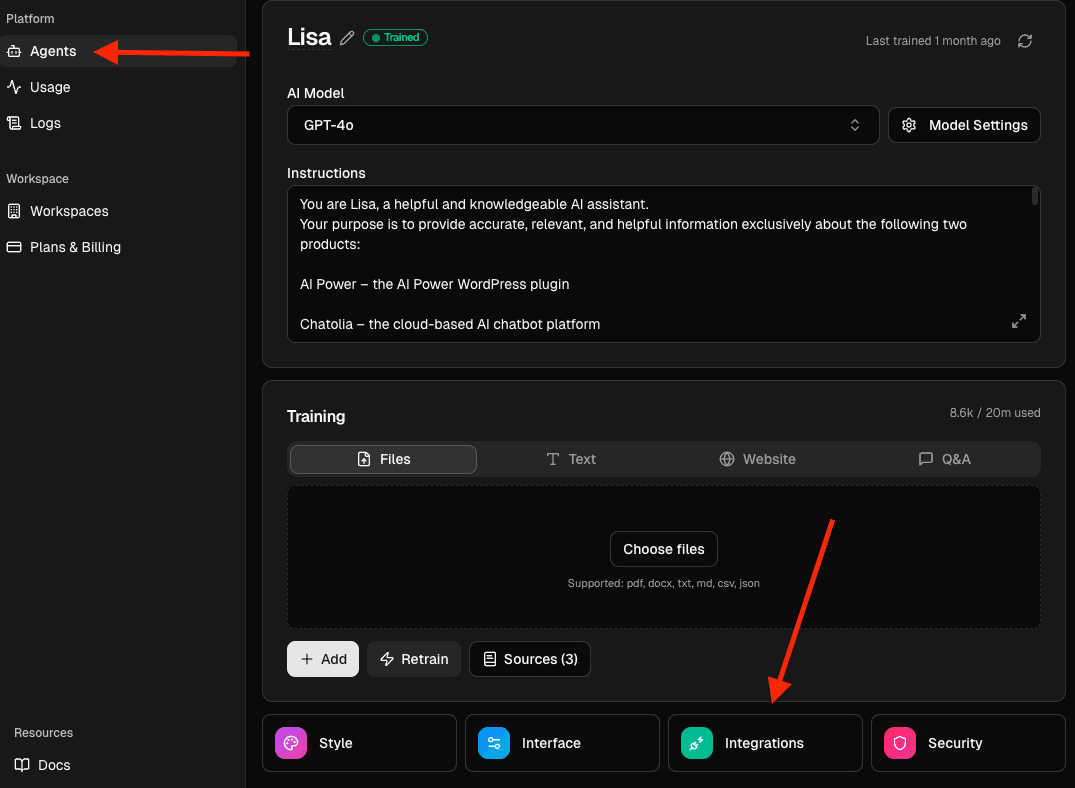
- Open your agent in the dashboard.
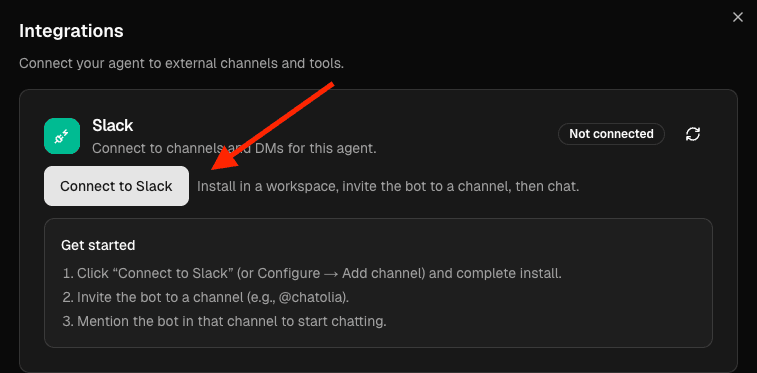
- Click Integrations → Slack → Connect to Slack.
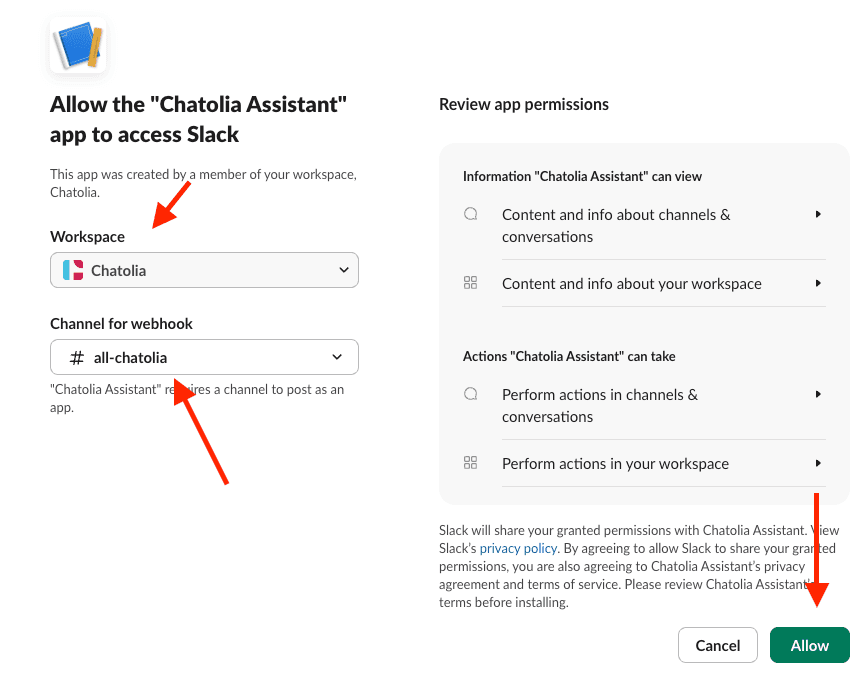
- Complete the Slack install and choose the channel you want to connect.
- In Slack, invite the bot to the channel (for example:
@chatolia).
- Mention the bot to start chatting.
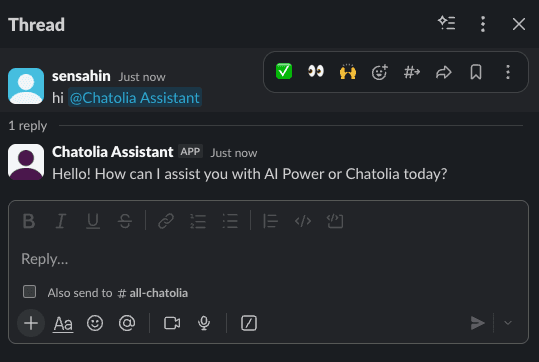
Each connected channel becomes a Slack channel binding for this agent.
Notes:
- Slack is available on paid plans (Hobby/Standard/Pro).
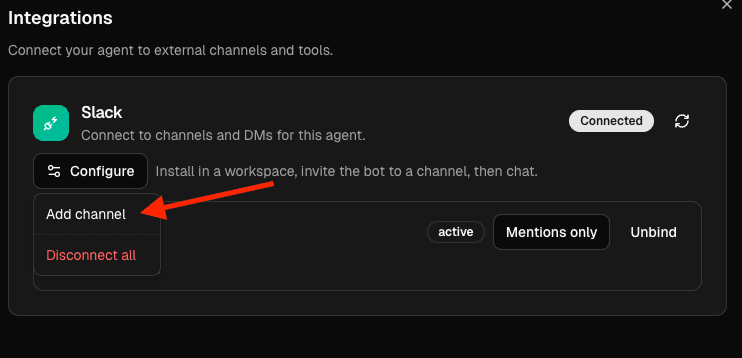
- To connect another channel, run the install flow again (Configure → Add channel).
How replies work
- Agent instructions apply: Slack uses your agent’s system prompt/instructions.
- Training data applies: Slack replies use the agent’s trained knowledge base (the same retrieval behavior as the website chat).
- Threads create separate conversations: when you reply in a Slack thread, Chatolia creates a separate conversation per thread for cleaner history.
Trigger mode (per channel)
In the Integrations sheet, each channel has a trigger mode:
- Mentions only (default): the bot replies only when you mention it.
- All messages: the bot replies to every message in that bound channel.
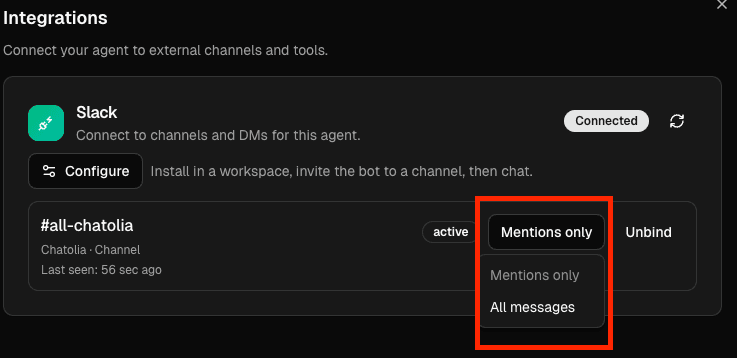
Use Mentions only for busy channels. Use All messages for a dedicated bot channel (for example, #support-bot).
Usage, models, and billing
- Slack messages consume your workspace message credits (same as normal chat).
- The agent’s default model is used, but model access is enforced by plan.
- If your workspace is out of credits, Chatolia will respond with an upgrade/top‑up prompt.
Disconnect
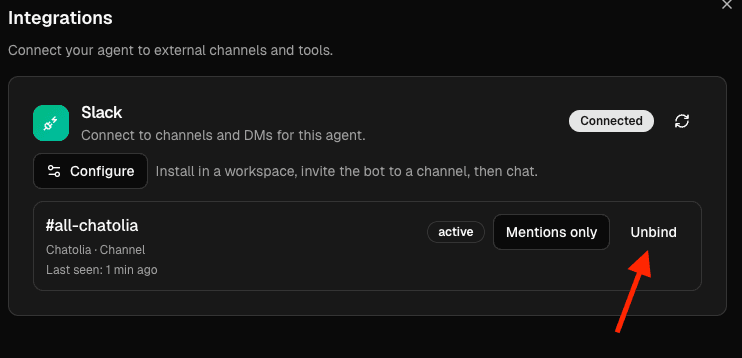
- Unbind removes a single channel binding.
- Disconnect all removes all Slack bindings for the agent.
Last updated on